Configure Information System
We use Ansible to propagate hardening actions, so we need to open an ssh port for Ansible to perform the necessary actions. On this page, you’ll find the information you need to set up an SSH server on a Debian 12 Linux machine.
Configuring the SSH service
Status check
The following command is used to check the status of the OpenSSH service:
sudo systemctl status ssh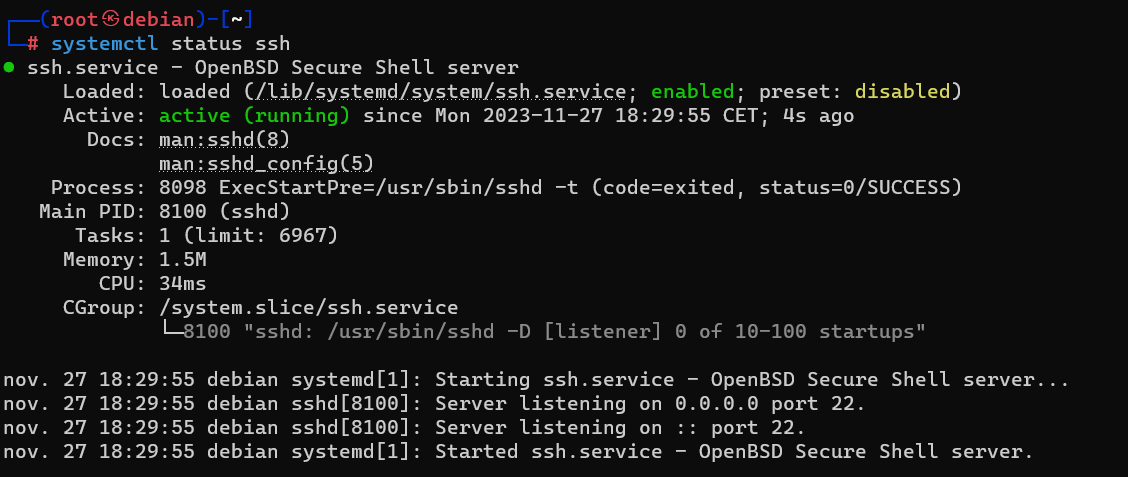
Service activation
If the service is disabled, use the following command to start it:
sudo systemctl start sshStartup service
On most Linux systems, the SSH service starts at boot time. If this isn’t the case and you’d like this behavior, use the following command to enable it at machine startup:
sudo systemctl enable sshConfiguration du service
The /etc/ssh/sshd_config file is used to configure the SSH daemon. By default, the service runs on port TCP/22.
It is recommended to :
- Disable root account login
- disable password login, preferring key login
- Disable listening on IPv6 if not in use
- Disable X11 forwarding
- Change listening port (default 22)
# OpenSSH config file
Port 50122 # Set the port you want
ListenAddress 0.0.0.0 # Listen on IPv4

# To disable IPv6, you need to comment the following line
#ListenAddress ::

PubkeyAuthentification yes
PermitRootLogin no
PasswordAuthentification no
PermitEmptyPassowrd no

X11Forwarding no
Key generation
To generate a key pair, SSH includes the following command:
ssh-keygen -t ecdsa -b 521 -f /home/user1/.ssh/id_ecdsa_debian12We strongly recommend protecting your private key with a password!
This generates two files, id_ecdsa_debian12 which contains the private key, and id_ecdsa_debian12.pub which contains the public key. Both files are stored in the ~/.ssh folder.
Key usage
The machine’s private key is required to use key authentication in AutomA. Please generate the keys on the machine hosting AutomA and add the corresponding public key to the machine’s ~/.ssh/authorized_keys file.
There are several ways of putting your public key on the remote machine:
SSH-COPY
You can use the ssh-copy binary as follows:
ssh-copy-id -i ~/.ssh/<your_key>.pub <username>@<ip_address> -p <port>This technique only works if the SSH server accepts a connection using password.
USB Stick
You can copy your public key to a usb key that you have mastered. Then, on the destination machine, create the ~/.ssh folder and the ~/.ssh/authorized_keys file into which you copy the contents of the public key from your USB key.
The right permissions must be applied:
chmod 700 /home/user/.ssh
chmod 600 /home/user/.ssh/authorized_keys
chown -R user:user /home/user/.ssh